Your intranet wiki says \\fileserver\share\report.xlsx, but your browser refuses to open it.
Parallel-Bridge-LocalLink makes those paths clickable: one click opens them in File Explorer.
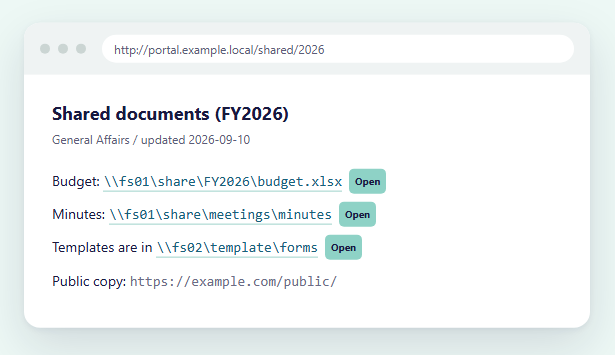
- Everything stays between your PC and your own file server.
- No history, no logs, no ads, no analytics, no telemetry. → Privacy Policy
What you need
| Item | Requirement |
|---|---|
| OS | Windows 10 version 2004 or later, or Windows 11 (64-bit) |
| Browser | Microsoft Edge or Google Chrome |
| Parts | The Windows app Parallel-Bridge-LocalLink and the extension for your browser (Parallel-Bridge for Edge for Edge, Parallel-Bridge for Chrome for Chrome) |
The app alone can open pbridge:// links, but you need the extension to use it on ordinary intranet pages.
1. Install
Install the app and the extension, using the buttons at the top of the page or the links below. Pick the extension that matches your browser (both are the same extension).
Windows app
Install Parallel-Bridge-LocalLink from the Microsoft Store.
Windows then associates pbridge:// links with the app. No extra setup is needed.
Edge extension
Add Parallel-Bridge for Edge from the Edge Add-ons store.
Chrome extension
Add Parallel-Bridge for Chrome from the Chrome Web Store.
In Chrome, pin the extension from the puzzle-piece icon on the toolbar so it is easy to find in the next step.
2. Enable it on the sites you use
The extension is disabled on every site by default. It reads page content only on sites you have enabled.
- Open an intranet page that contains share paths
- Click the “Parallel-Bridge for Edge” toolbar icon (“Parallel-Bridge for Chrome” in Chrome)
- Choose “Enable on this site”
- Grant the site access when the browser asks
Share paths on that site now become links. To stop, choose “Disable on this site” from the same icon.
3. Click a link
- The browser asks first — Edge/Chrome shows a confirmation for opening Parallel-Bridge-LocalLink. “Always allow” applies per site, so other sites will ask again.
- Parallel-Bridge-LocalLink asks next — it shows the full path it is about to open and the origin the link claims to come from. Check it, then press “Open”.
- File Explorer opens with the item selected.
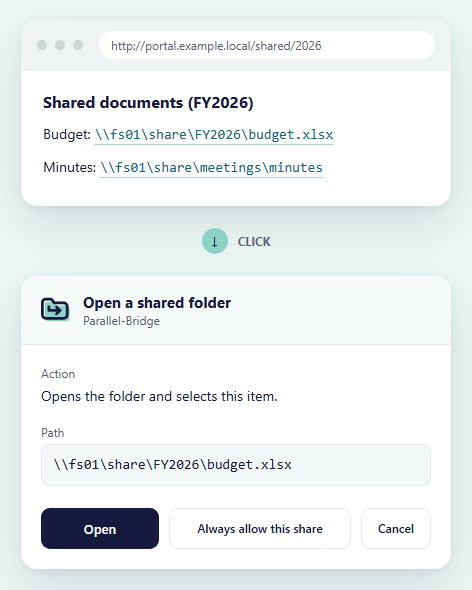
If you will use the same share (\\server\share) often, press “Always allow this share”
in the confirmation dialog to skip it next time.
Click modifiers
| Action | Result |
|---|---|
| Click | Open the folder and select the item (recommended) |
| Shift + click | Open with the default app |
| Ctrl + click | Just copy the path |
You can change the default under “When you click a link” in the extension options.
4. Settings
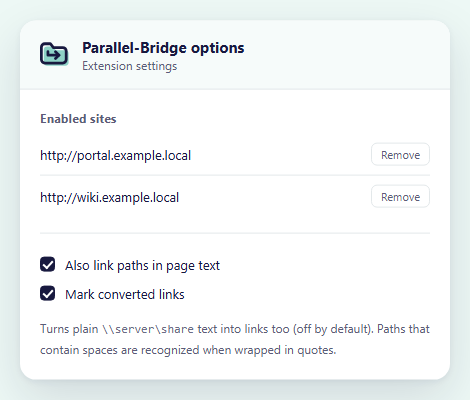
Extension options
Toolbar icon → “Open options”.
| Setting | What it does |
|---|---|
| Enabled sites | The sites you allowed. You can revoke them here |
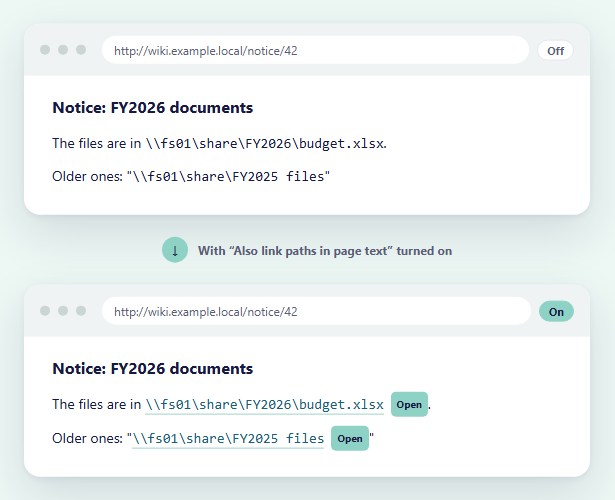
| Also link paths in page text | Turns plain \\server\share text into links too (off by default). Paths with spaces are recognized when wrapped in quotes or 「」 |
| When you click a link | See the table above |
| Mark converted links | Makes converted links easy to spot |
App settings
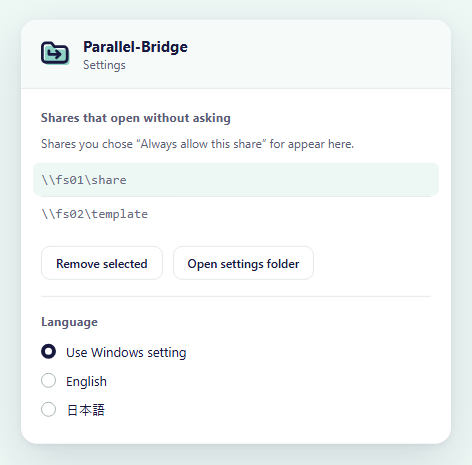
Launch Parallel-Bridge-LocalLink from the Start menu to open its settings window.
| Setting | What it does |
|---|---|
| Shares that open without asking | Shares you pressed “Always allow this share” for. Select one to remove it |
| Try it | Enter a UNC path to see how it is validated and opened |
| Language | English / Japanese / Use Windows setting (takes effect on next start) |
| Open settings folder | Opens where the settings file is stored |
5. Troubleshooting
Nothing happens when I click a link
- Check that the Windows app is installed (look for Parallel-Bridge-LocalLink in the Start menu).
- You may have blocked the browser confirmation earlier. Review the site’s permissions from the icon at the left of the address bar.
Paths on the page don’t become links
- Make sure you pressed “Enable on this site” for that site.
- If the path is plain text rather than an
<a>link, turn on “Also link paths in page text” in the options. - Reload the page if it was already open when you enabled the site.
“This server isn’t on the allow list”
For safety, Parallel-Bridge-LocalLink only reaches servers on your local network. Links pointing to servers on the internet are not opened.
“This path wasn’t found” / “Couldn’t reach the server”
Check the spelling of the path. If you are about to connect to the VPN, or the file is available offline, you can continue with “Open anyway”.
“Programs aren’t opened directly”
Executables such as .exe or .bat are never launched directly.
The folder that contains them is shown instead.
The browser confirmation appears every time
That is how Edge and Chrome behave. “Always allow” applies per site, so a different site asks again.
Support development
Parallel-Bridge is free. If you find it useful, please consider supporting its development. Support is optional and doesn’t change which features you can use.
Contact
Bugs and requests: GitHub Issues.