What ParallelScope is
ParallelScope is a file browser that pulls folders from unrelated locations into a single tree. Register the folders you actually work in — say your active projects, your design assets, and your reports — and you can browse and search all of them from one window instead of juggling Explorer windows.
The folder structure and file listings are kept in a local SQLite cache. Listings are drawn from that cache first, so a folder opens instantly; the real file system is then re-read in the background to bring the listing up to date. That keeps the UI responsive even on slow locations such as a NAS over the network.
Every screenshot on this page was taken with dummy data placed under C:\ScopeDemo. It is not a real folder structure.
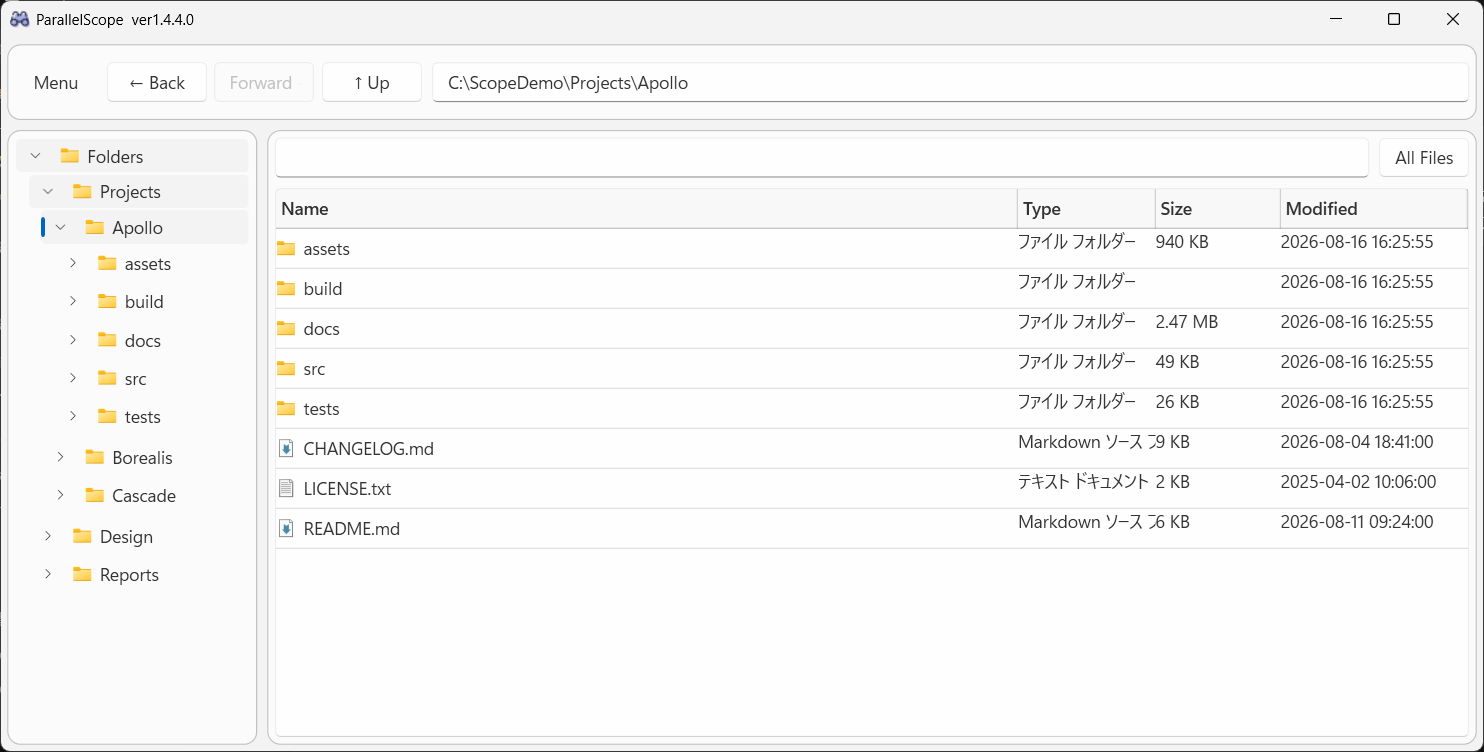
The main window
 1
2
3
4
5
6
7
1
2
3
4
5
6
7
- License badge — the title bar shows your current license ("Free", "Plus (monthly)" or "Plus (one-time)") to the right of the app name and version. It is checked right after the app starts, so it can appear a moment later.
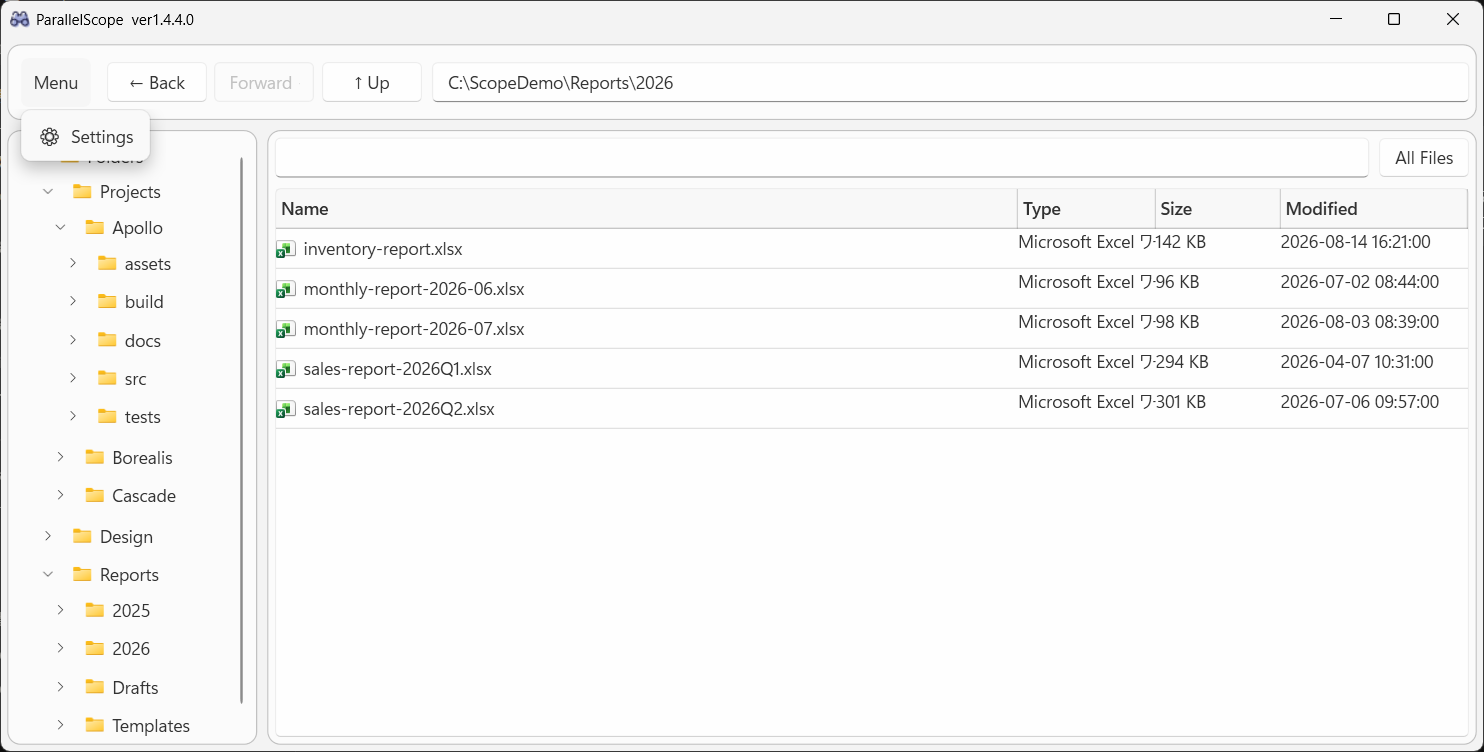
- Menu — sits in the title bar, to the left of the app name. It opens the settings window, exports the current list to CSV, and links to this user guide.
- Navigation buttons — the arrow buttons move back and forward through your navigation history and go up to the parent folder. Hover over one to see what it does. With Plus the tab strip shares this row, to the right of the address bar.
- Address bar — the full path of the current folder. Type or paste a path and press Enter to jump there.
- Search box — searches under the current folder as you type (incremental search).
- All Files toggle — lists every file under the current folder as one flat list.
- Folder tree — your registered root folders, gathered under a top-level "Folders" node. With Plus, "★ Favorites", "🕘 Recent" and "🕒 Frequently Used" appear above it.
- File list — the contents of the selected folder. Click a column header to sort.
First run: add your root folders
After installation no roots are registered yet, and the app falls back to showing your Desktop. Start by registering the folders you want to browse.
- Open "Menu" → "⚙ Settings"
- On the "Root Folders" page, type the full path of a folder and click "Add"
Roots appear in the tree in the order listed. Reorder them with "↑ Up" / "↓ Down", or drop one with "Remove". - Optionally add folders to "Excluded Folders"
Excluding noisy folders such asnode_modulesorbinkeeps them out of the tree, the file list, search results, and scans. - Click "Save + Full Scan"
The cache is empty right after you add a root, so scanning once here makes browsing and searching fast from then on. Use "Save" if you only want to store the settings.
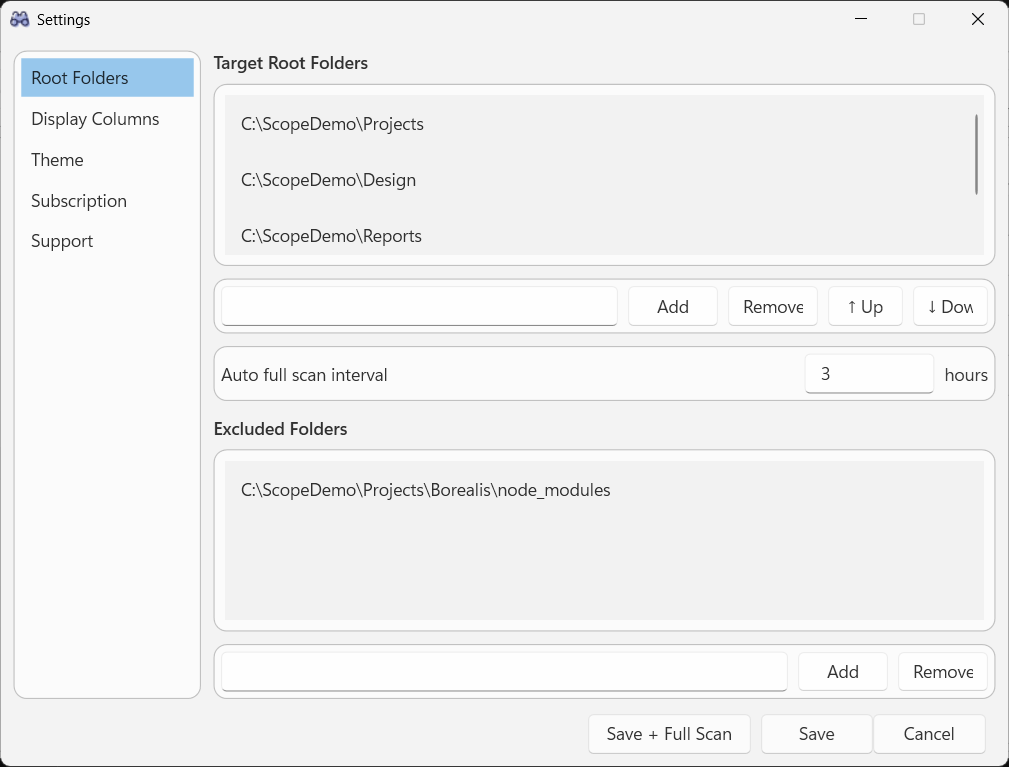
Exclusions are full paths, not name patterns. Adding a path excludes exactly that folder and everything under it — it does not exclude every folder that happens to share the name.
Browsing and navigating
- Select in the tree — click a folder on the left and its immediate contents appear on the right. Click
>to expand a node; children are loaded at that point. - Double-click — double-clicking a folder in the list moves into it; double-clicking a file opens it in the default application.
- Back / Forward / Up — the three arrow buttons work the way a browser's do. Hover over one for a tooltip saying which is which.
- Address bar — paste a path and press Enter to go straight there. When the path is too long for the box, hover over it to read the whole thing.
- Folder tree toggle — the "☰" button left of the arrows collapses the folder tree so the file list gets the full width, and brings it back. This is a ParallelScope Plus feature; see Tabs and split view.
- Sorting — click a column header such as "Name", "Size", or "Modified". Sizes and timestamps are compared as raw values rather than as displayed text, so
9 KBand12 MBsort correctly. - Scrolling sideways — when the columns are wider than the list, a horizontal scroll bar appears at the bottom. Shift + the mouse wheel scrolls sideways too.
The "Folders" node
The node at the very top of the tree is a virtual folder that gathers all your roots. It is not a real path, so selecting it
shows ::Folders:: in the address bar and lists one row per root. Searching from here
searches across every registered root at once.
With Plus, three more virtual nodes sit above it — "★ Favorites", "🕘 Recent" and "🕒 Frequently Used" — and they
behave the same way: the address bar shows ::Favorites::, ::Recent:: or ::Frequent::, the
list shows one row per folder, and searching from there covers every folder gathered under the node.
See Favorites, Recent and Frequently Used.
Folder sizes
The size shown on a folder row is the total size of its contents, aggregated from the cache. Folders that have not been scanned yet show a blank size until a scan reaches them.
Favorites, Recent and Frequently Used
Registering a root folder for every folder you care about quickly gets unwieldy. Three extra nodes at the top of the tree give you shortcuts instead — one you curate by hand, two the app fills in for you. All three are ParallelScope Plus features and are hidden entirely without Plus.
★ Favorites
- Right-click any folder in the tree and choose "★ Add to Favorites". Right-click a registered one and the item reads "☆ Remove from Favorites" instead.
- Favorites are listed in the order you added them, and each one expands into its own subtree just like a root folder does.
- Selecting the "★ Favorites" node itself lists every favorite in one place, and searching from there covers all of them.
- The list is saved in
settings.json, so it survives restarts. A favorite on a disconnected NAS is kept rather than dropped.
🕘 Recent
- The folders you opened most recently, newest first, up to 20.
- It draws on the same record as "Frequently Used" — only navigation you perform yourself counts — but sorts by when you last opened each folder instead of how often.
- Folders already in Favorites are left out, so no folder shows up twice across the nodes. Excluded folders never appear either.
- The order is refreshed when the app starts and when you expand the node, not after every move. Selecting the node itself always lists the newest order.
🕒 Frequently Used
- The app counts how often you open each folder and lists the top 10, most-visited first (ties broken by the most recent visit).
- Only navigation you perform yourself is counted — tree clicks, double-clicks, Back / Forward / Up, and the address bar. Folders the app opens for you at startup do not count.
- Folders already in Favorites are left out, so no folder shows up twice across the nodes. Excluded folders never appear either.
- The order is refreshed when the app starts and when you expand the node, not after every move — so the tree does not rearrange itself while you are clicking through it.
Searching
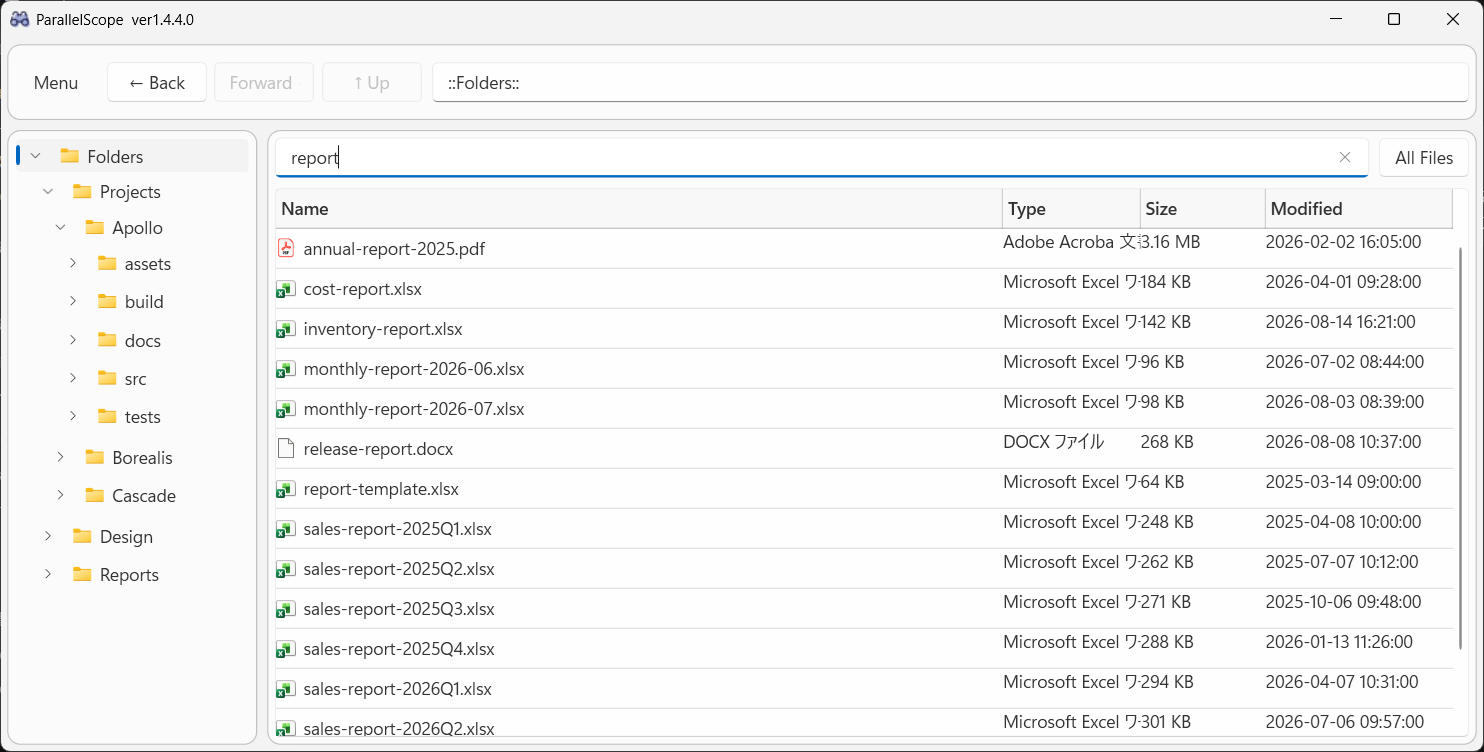
report with "Folders" selected: hits from every registered root, in one list.- There is no search button. The list updates as you type.
- The scope is everything under the folder you are currently viewing. To search everywhere, select the top-level "Folders" node first.
- Search runs against the cache, never by walking the live file system, so it stays fast even on a NAS. The flip side: files added since the last scan are not found until the next one.
- Clear the search box to return to the normal folder listing.
- Excluded folders never appear in results.
- Results appear in stages. On a large folder the first couple of thousand rows are shown right away and the rest fill in behind them, so you do not wait for the whole list before you can start reading it.
- While a search is running the list you are looking at stays on screen, so it does not flash empty on every keystroke.
Regular expression search (a ParallelScope Plus feature)
Turn on "Treat the search box text as a regular expression" on the "Settings > Search" page to search with .NET regular expression syntax instead of a plain substring. The switch applies and is saved immediately — it does not go through the "Save" button.
- The pattern is matched against the file or folder name, not the full path.
- Uppercase and lowercase are not distinguished, the same as the normal search.
- While a pattern is still half-typed and not yet valid, no search runs: the list stays as it was and the search box turns red.
Keeping file names in memory (a ParallelScope Plus feature)
Also on the "Settings > Search" page, "Speed up search by keeping file names in memory" builds an in-memory index of every cached name. It too applies and is saved immediately.
- Searching gets faster — roughly 400 ms down to roughly 20 ms on a cache of 1.5 million files.
- Memory use goes up — roughly 160 MB for those 1.5 million files. Turning the setting off releases it.
- The index is built in the background and rebuilt after each scan. Results do not change — only how quickly they arrive.
All Files mode
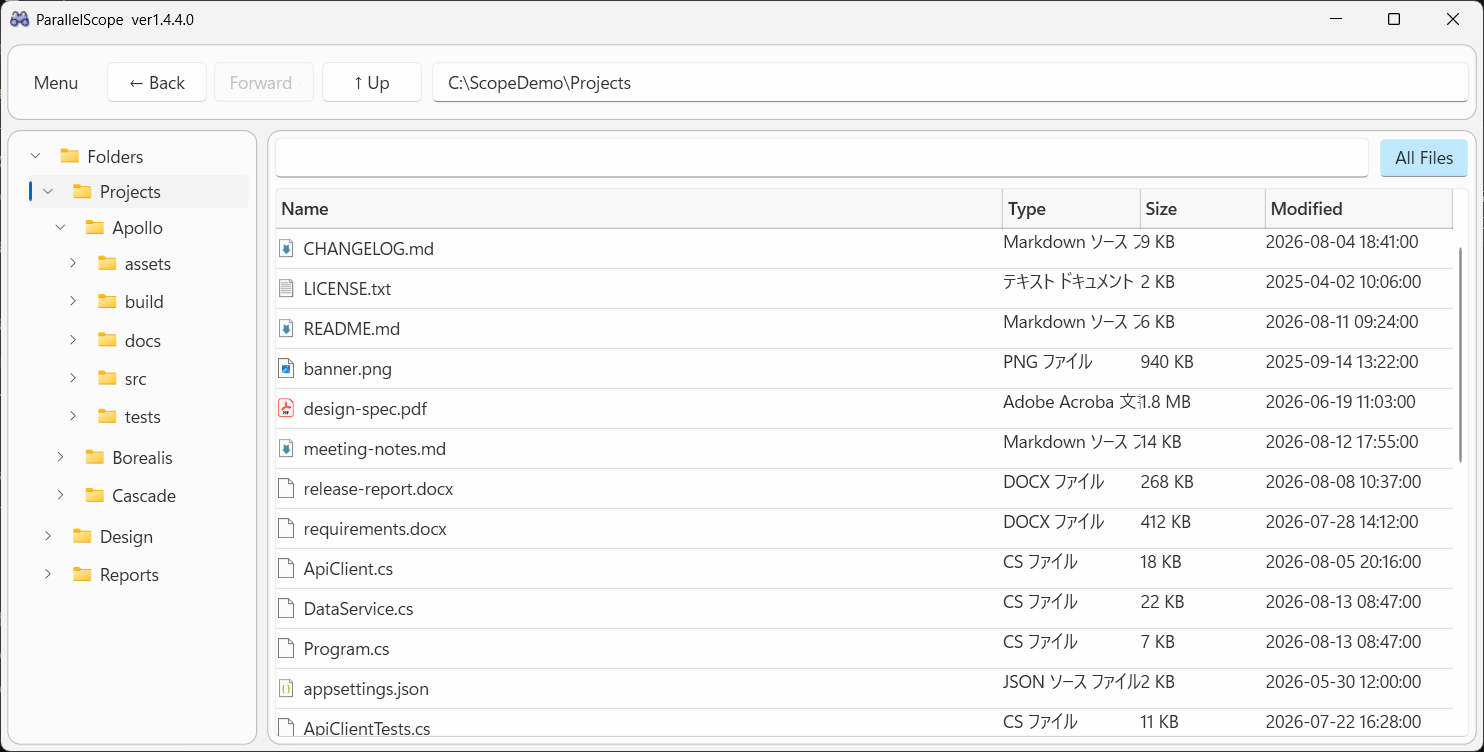
Turning on "All Files" in the top right lists every file underneath the selected folder, recursively (folder rows are omitted). It is the fastest way to answer "I know it's in here somewhere".
- This view is also built from the cache, so it reflects the most recent scan.
- Selecting another folder while it is on switches the flat list to that folder.
- Searching while it is on returns files only.
- The list appears in stages: the first couple of thousand files show up straight away, and the rest follow, so a folder with a very large subtree does not leave you staring at the previous list.
- The on/off state is saved per tab and restored the next time you start the app.
Tabs and split view (Plus features)
Tabs and the split view let you keep several folders open and move between them. Both are ParallelScope Plus features: without Plus the tab strip is hidden, "Split View" in the menu stays greyed out, and the folder tree of a pane cannot be collapsed.
Tabs
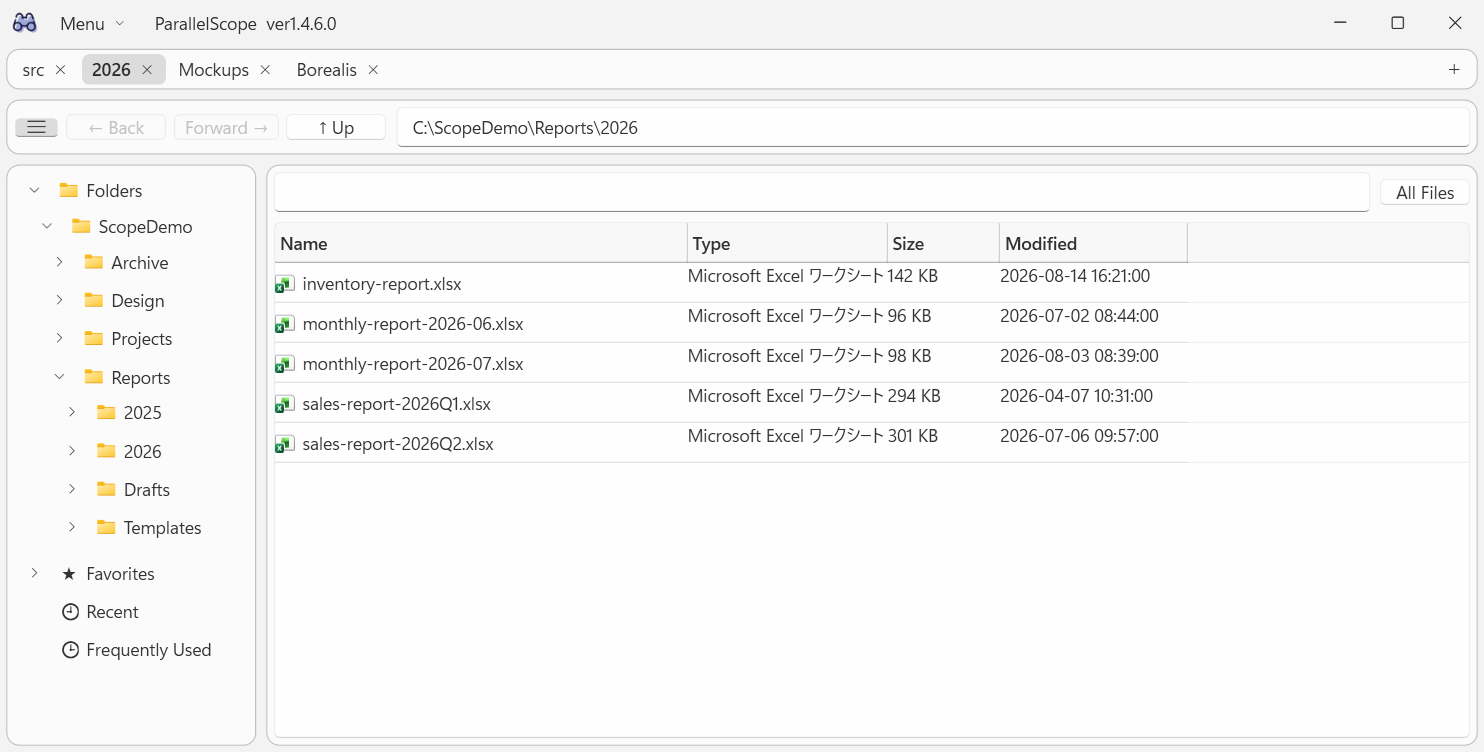
- The tab strip sits at the top of the pane. "+" at its right end opens a new tab at the folder you are currently viewing.
- Close a tab with its "✕" or a middle click. While the window shows a single pane, the last remaining tab cannot be closed. While it is split, closing the last tab of a pane closes that pane too and goes back to a single pane.
- Drag a tab to reorder it.
- Each tab keeps its own current folder, back/forward history, search text, All Files mode, and list sort order.
- A pane holds up to 20 tabs.
- You can also right-click a folder in the tree and choose "Open in New Tab", or middle-click a folder row in the list.
| Shortcut | What it does |
|---|---|
| Ctrl + T | Open a new tab |
| Ctrl + W | Close the current tab |
| Ctrl + Shift + T | Reopen a closed tab (the last 10, for as long as the app is running) |
| Ctrl + Tab / Ctrl + Shift + Tab | Go to the next / previous tab |
| Ctrl + 1 to 8 | Go to that tab, counting from the left |
| Ctrl + 9 | Go to the rightmost tab |
| F6 | (while split) Switch which pane you are working in |
Split view
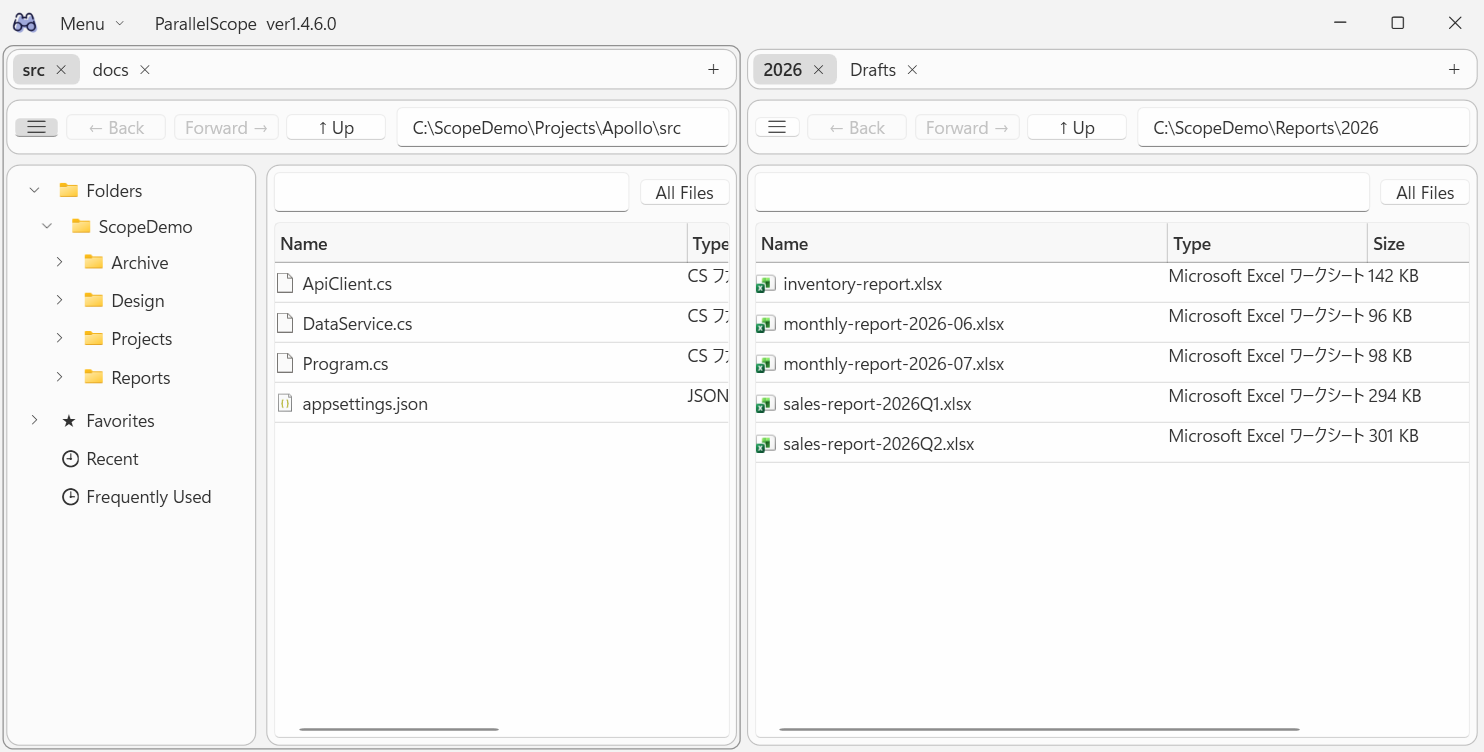
- "Menu > Split View" splits the window in two. Choose "Side by Side" or "Top and Bottom" for the direction.
- Each side (pane) gets its own folder tree, address box, search box, tab strip and file list, so you can put two folders next to each other.
- The pane you are working in is outlined. Click it or press F6 to switch. Menu actions such as the CSV export apply to that pane.
- Drag the divider to change how the space is shared. The ratio is remembered.
- Drag a tab onto the other pane to move it there, or use "Open in Other Pane" from the tree or list right-click menu (when the window is not split yet, that command splits it for you).
- When you turn the split off, the tabs of the closing pane move to the end of the remaining one. "Close This Pane" in the tree or list right-click menu closes just that pane the same way.
- A pane added by splitting starts with its folder tree collapsed, because each side is only half as wide. Open it again with the "☰" button whenever you need it.
Collapsing the folder tree
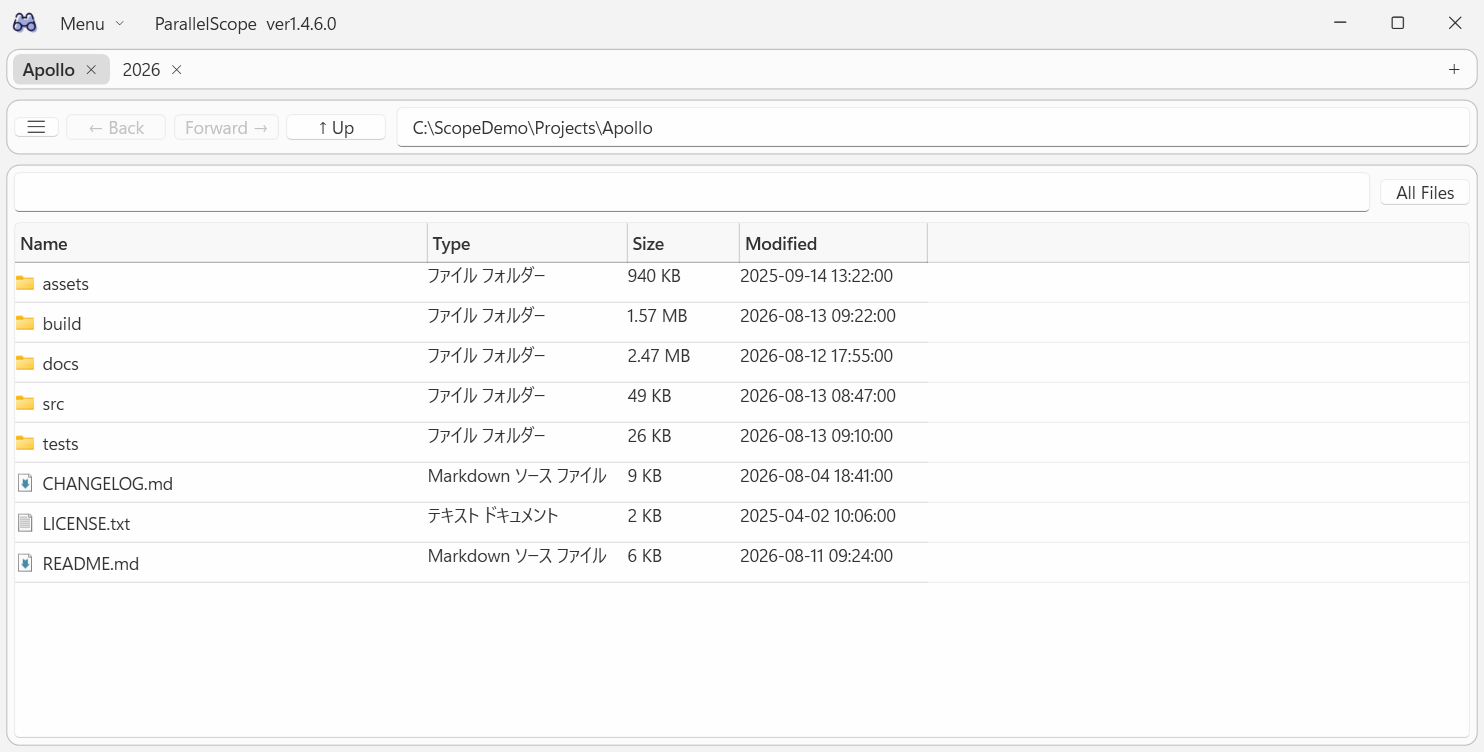
- The "☰" button left of "Back" collapses that pane's folder tree and gives the whole width to the file list. Press it again to bring the tree back at the width it had.
- Each pane keeps its own state, so you can leave the tree open on one side and collapsed on the other.
- The state is saved and restored the next time you start the app.
- Without Plus the button is not shown and the tree always stays open.
The file list columns, their widths and their order are one shared setting across both panes. If you resize a column on one side while split, that width is saved as the shared setting.
Your open tabs and the split state are saved and restored the next time you start the app (search text is not restored). A tab whose folder no longer exists opens at your first root folder instead.
Right-click menus
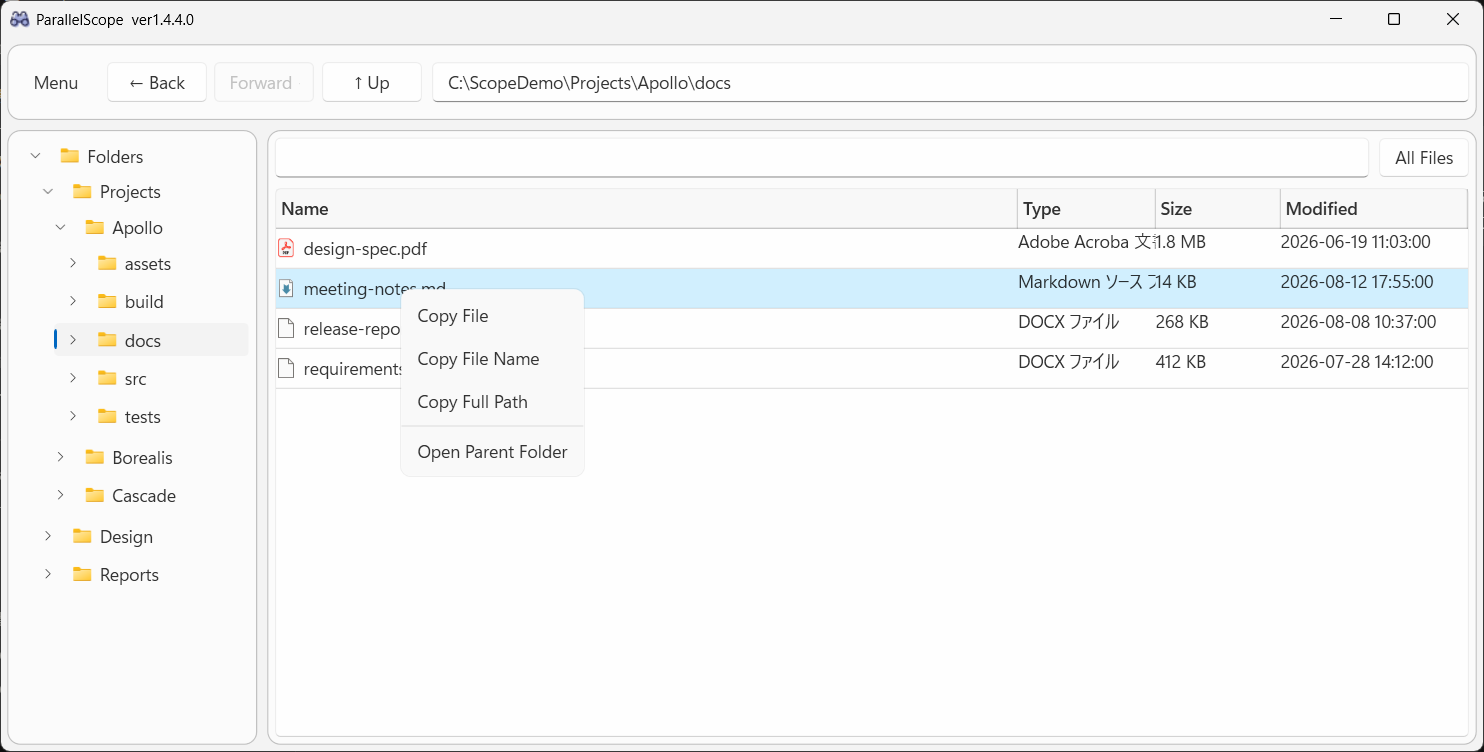
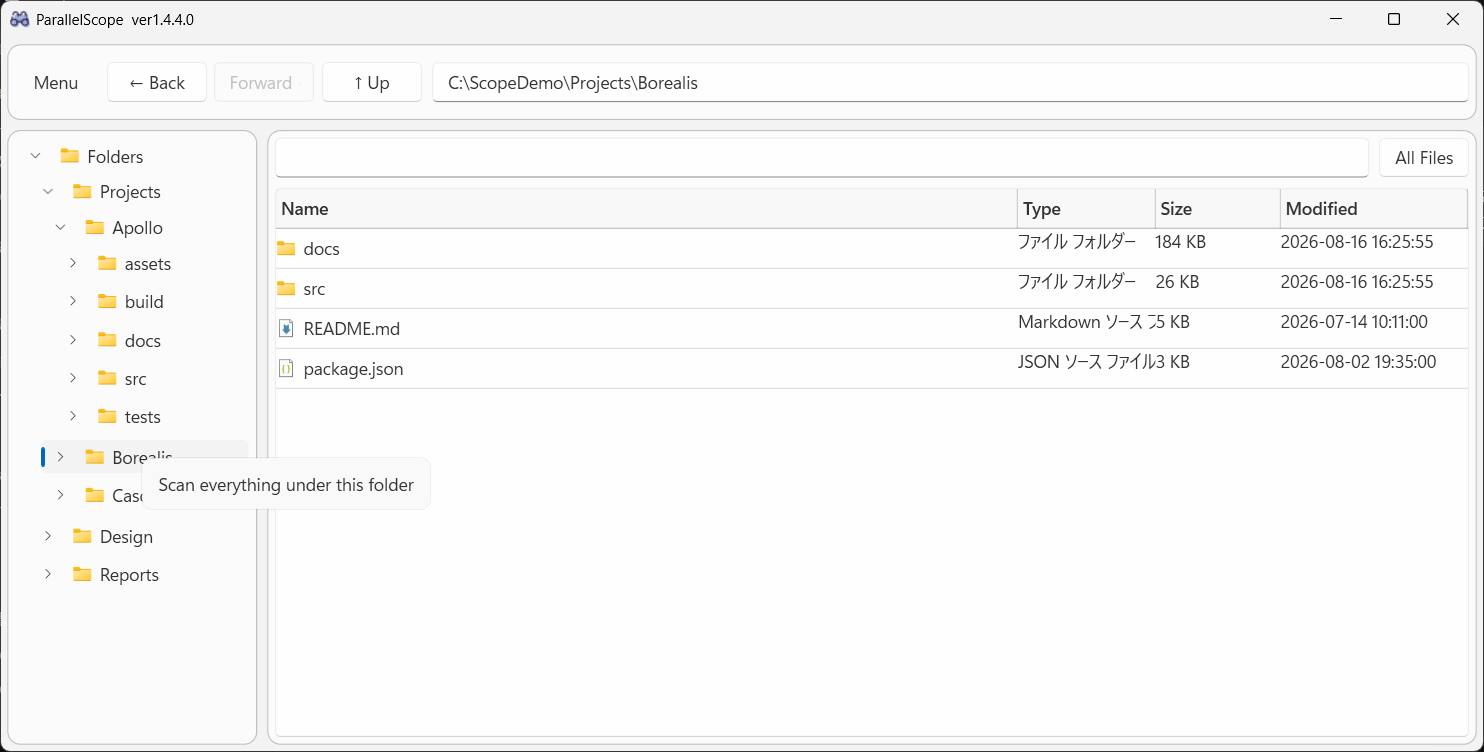
| Menu item | What it does |
|---|---|
| Copy File | Copies the file itself, so you can paste a copy in Explorer. |
| Copy File Name | Copies just the file name as text. |
| Copy Full Path | Copies the full path as text. |
| Open Parent Folder | Opens the parent folder in Explorer with the item selected. |
| Open in New Tab | Opens the folder in a new tab. A Plus feature — not available without Plus. |
| Open in Other Pane | Opens the folder in the other pane. If the window is not split yet, it splits the window and opens the folder in the new pane. A Plus feature, so it is unavailable without Plus. |
| Close This Pane | Closes the pane you right-clicked and goes back to a single pane. Its tabs move to the end of the remaining pane. Shown only while the window is split. |
| Scan everything under this folder | (tree) Scans just that subtree and refreshes its cache. |
| ★ Add to Favorites / ☆ Remove from Favorites | (tree) Adds the folder to "★ Favorites", or takes it out again. A Plus feature — the item is not shown without Plus. |
Scanning and the cache
Browsing and searching are built on the SQLite cache, which is refreshed in three ways.
- Automatic full scan — once when the app starts, then on the interval you configure (3 hours by default). While it runs, an icon spins next to each root in the tree.
- Save + Full Scan — saves your settings and immediately scans everything. Worth doing right after you add or change a root.
- Per-folder scan — right-click a folder in the tree and choose "Scan everything under this folder". Much quicker than a full scan when only one area changed.
In addition, opening a folder re-reads its immediate contents from the live file system and updates both the listing and the cache. If a file you just added does not turn up in search, scan that folder or wait for the next automatic full scan.
The app stays usable while a scan runs. Triggering "Save + Full Scan" during a scan cancels the running one and restarts it with the new settings.
Customizing the view
Theme
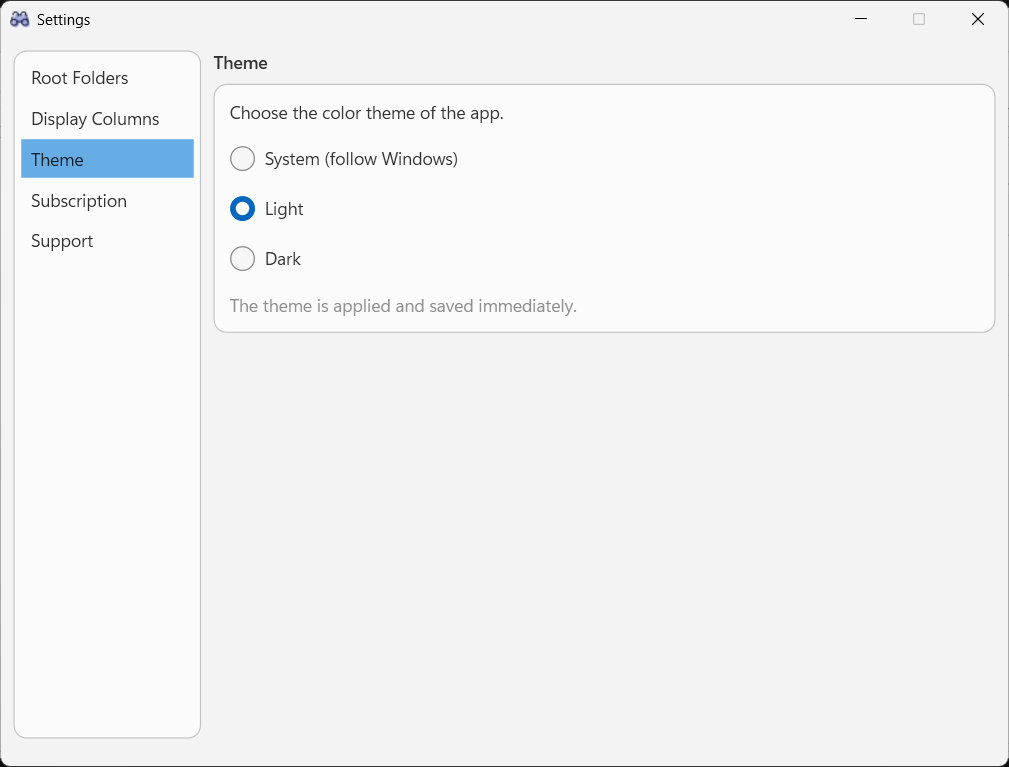
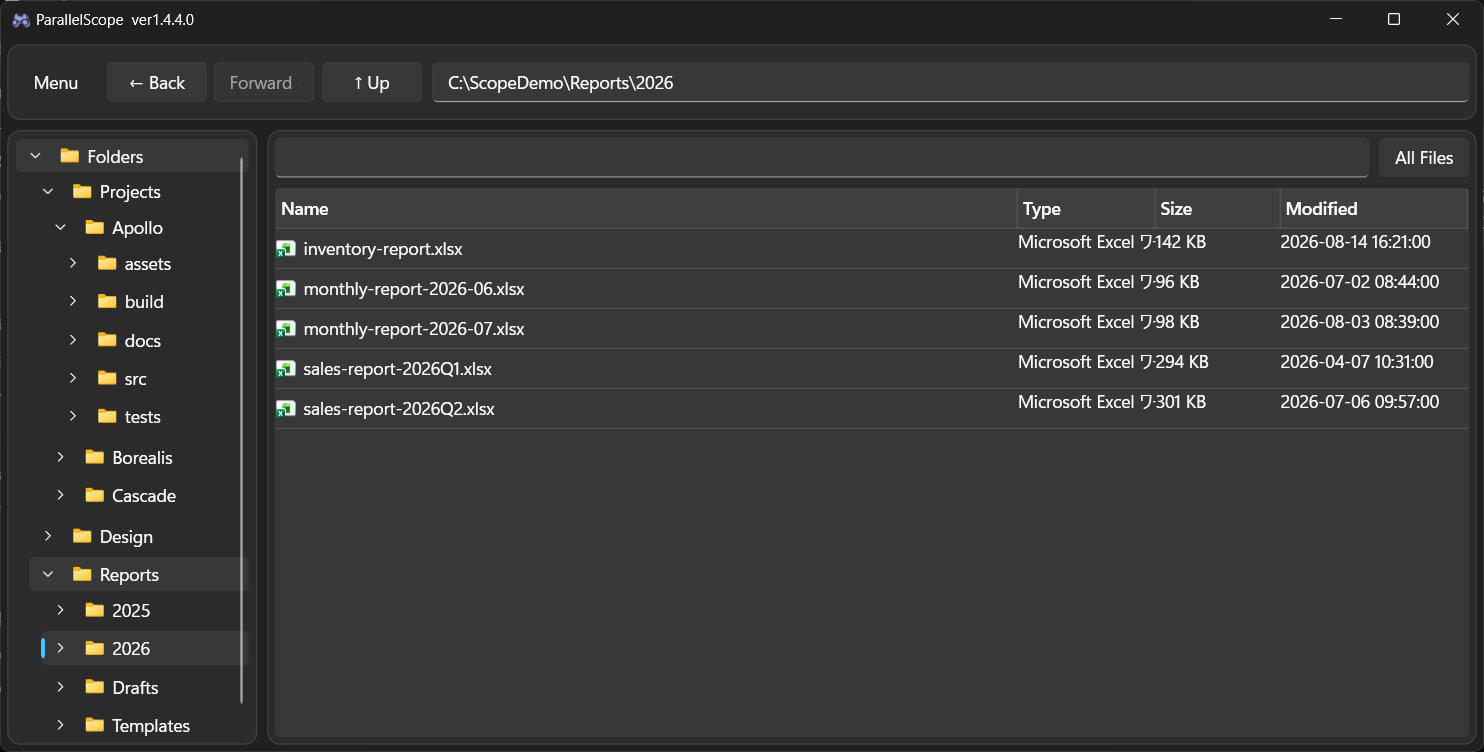
Display language
"Settings > Language" switches the app's own text between English and Japanese. The default, "System (follow Windows)", follows your Windows display language. Like the theme, the choice applies and is saved the moment you pick it — there is no "Save" to press — and it works without Plus.
- The whole window swaps over straight away: the menu, the settings window, the file list headers, and the tree's "★ Favorites" / "🕘 Recent" / "🕒 Frequently Used" nodes.
- The Type column is the exception. Those names come from Windows itself, so they follow the language of the OS rather than this setting.
- CSV exports keep their English headers, so a file exported in one language can still be read by the same script or spreadsheet.
Folder tree (a ParallelScope Plus feature)
"Settings > Folder Tree" controls which of the top-level shortcut nodes the tree shows and the order they appear in. Tick "★ Favorites", "🕘 Recent" and "🕒 Frequently Used" to show them, and move any of them with the "↑ Up" / "↓ Down" buttons. The "Folders" node cannot be hidden — otherwise the tree could end up empty — but it can be moved, so you can put it at the very top if you would rather have your roots first.
- The change takes effect when you save. If you hide the node you are currently looking at, the list moves back to "Folders".
- Hiding a node does not throw anything away: "Recent" and "Frequently Used" keep being built from the folders you open, and your favorites are untouched.
- Like the nodes themselves, this is a paid Plus feature. Without Plus none of the three appear, but the settings are kept for when you buy it.
Columns (a ParallelScope Plus feature)
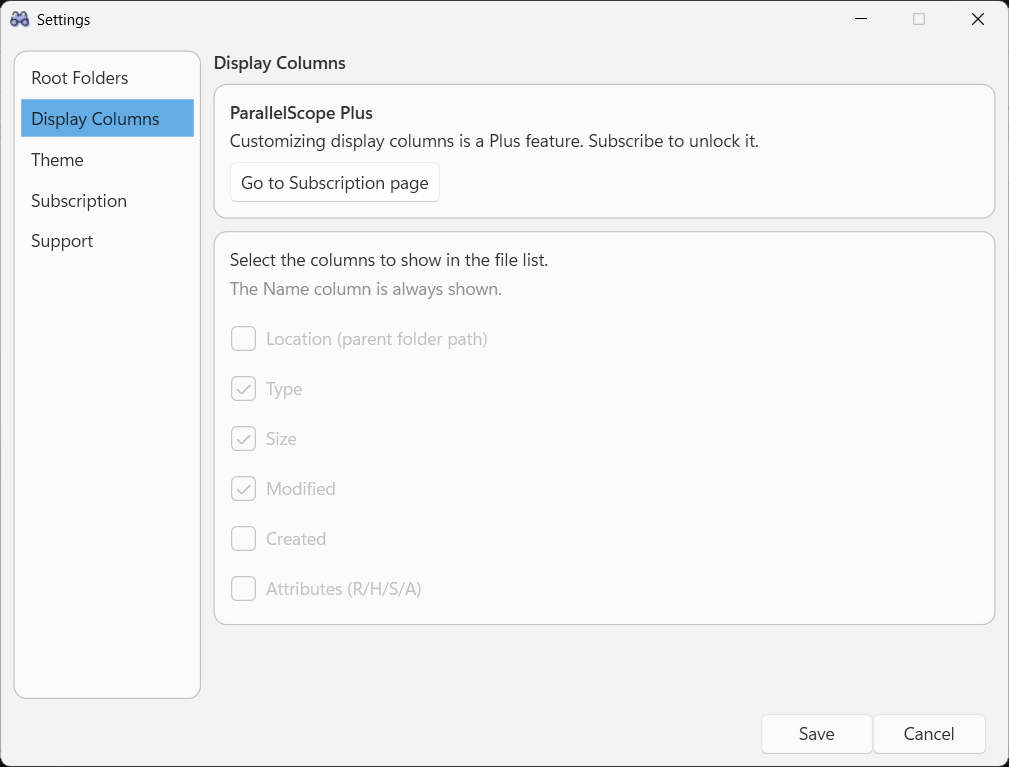
"Settings > Display Columns" controls both which columns the file list shows and the order they appear in. Tick a column to show it, and move it with the "↑ Up" / "↓ Down" buttons. The columns on offer are Location (the parent folder path), Type, Size, Modified, Created, and Attributes; the Name column is always shown, but it can still be moved.
- Header drags are saved too. Reordering columns by dragging their headers in the file list, and resizing them by dragging the edges, are stored when you close the app and restored the next time you start it.
- "Reset columns to defaults" puts the selection, the order, and the widths back to Name / Type / Size / Modified. The widths are cleared when you save.
- All of this is a paid Plus feature. Without Plus the file list uses the default Name / Type / Size / Modified in the default order — but your settings are kept, so buying Plus brings your layout straight back.
Hidden and system items
Below the column list, the same "Settings > Display Columns" page has "Hidden and system items", with one checkbox for hidden files and folders and one for system files and folders. Both are ticked by default, so those items are shown; clear a box to leave them out of the file list and the folder tree alike. Unlike the columns above it, this part of the page works without Plus.
- The change takes effect when you save the settings. No rescan is needed — the cache records every item whatever its attributes are, and the filtering happens as the list is drawn.
- This is the opposite of Explorer's default. ParallelScope shows hidden and system items unless you say otherwise, so files you could already see do not quietly disappear.
Exporting the list to CSV
"Menu" → "📄 Export CSV..." writes the list you are currently looking at to a CSV file. It is a ParallelScope Plus feature; without Plus the menu item is still there but is greyed out and cannot be clicked.
- What you get is what you see — the same rows in the same sort order, with the same columns. That includes search results and All Files mode, so you can narrow the list down first and export only that.
- In the save dialog, the "Save as type" box picks how the Size column is written: sizes as displayed (
11.8 MB) or sizes in bytes (12345678, under the header "Size (bytes)"). Pick the byte form when you want to total or sort sizes in a spreadsheet. Your choice becomes the default next time. - The file name defaults to
ParallelScope_<folder>_<date>_<time>.csv. - The file is written as UTF-8 with a BOM, so Excel opens non-ASCII names and paths without garbling them.
ParallelScope Plus (monthly subscription / one-time purchase)
- The Plus features today are:
- "★ Favorites", "🕘 Recent" and "🕒 Frequently Used" in the folder tree
- Choosing which top-level tree nodes to show, and in what order
- Customizing the file list columns — which columns, their order, and their widths
- Regular expression search
- Keeping the file name index in memory to speed up search
- Exporting the file list to CSV
- Multiple tabs
- Split view (two panes)
- Collapsing the folder tree of a pane
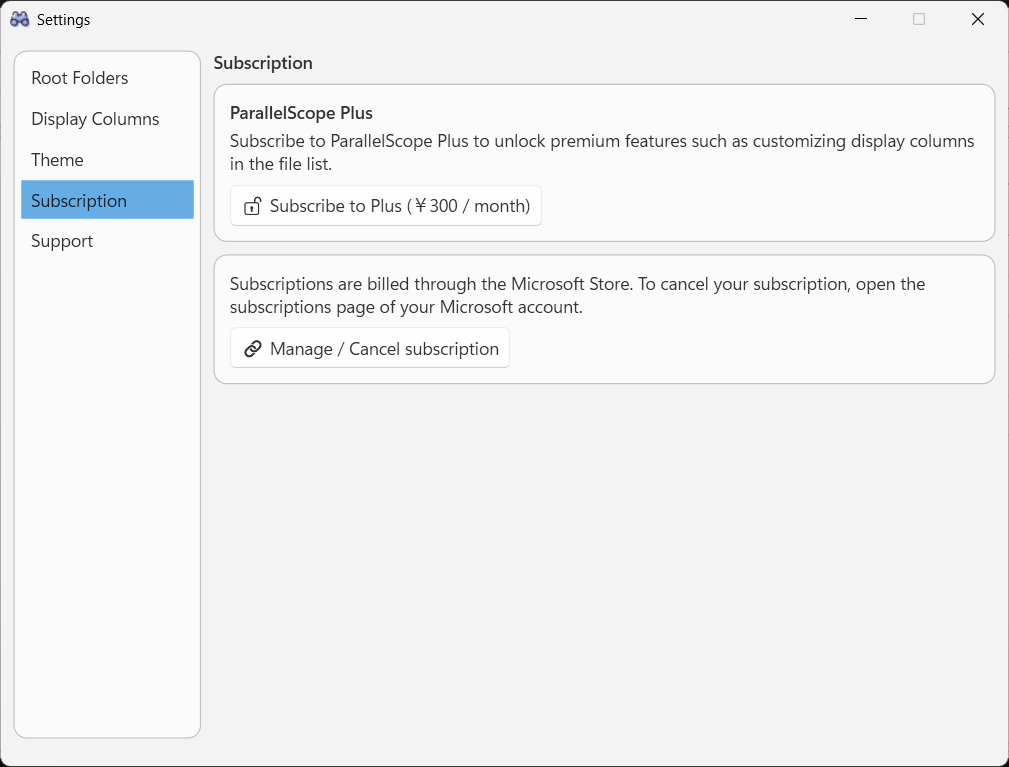
- Plus comes as a monthly subscription and as a one-time purchase, and both unlock exactly the same features. There is no need to buy both: while you own either one, the other purchase button is hidden.
- Purchase, billing, and cancellation are handled entirely by the Microsoft Store. "Manage / Cancel subscription" opens the subscriptions page of your Microsoft account (a one-time purchase has nothing to cancel, so that link is hidden once you own it).
- The license state is checked against your Microsoft Store license, so this only applies to the Microsoft Store build.
Where your data is stored
Settings and the cache are stored locally. Nothing is uploaded to any server.
| File | Contents |
|---|---|
settings.json | Root folders, excluded folders, scan interval, theme, column layout, favorites, and how often you open each folder |
ParallelScope.sqlite | Cached folder structure and file listings |
In the Microsoft Store build they live in %LOCALAPPDATA%\Packages\msmsrep.ParallelScope_77t1an0ygyrva\LocalState.
Uninstalling the app removes them as well.
Troubleshooting
A file I just added does not show up in search
Search reads the cache. Right-click that folder in the tree and run "Scan everything under this folder", or wait for the next automatic full scan.
A file I can see in Explorer is missing from the list
Check "Settings > Display Columns" and look at "Hidden and system items". If either box is cleared, files and folders with that attribute are left out of both the list and the tree.
A folder is missing from the tree
Check "Settings > Root Folders" and look at Excluded Folders — an excluded path and everything under it is hidden from the tree, the list, and search.
A NAS or network drive is slow or disconnected
Roots you cannot reach right now can still be browsed and searched from the cache. Once the connection is back, the next scan brings them up to date.
A folder shows no size
Folder totals are aggregated from scanned cache entries, so folders that have not been scanned yet show a blank size.
I want different columns
Adding, removing, and reordering columns is a Plus feature. "Settings > Display Columns" links through to the Plus page.
My column widths went back to the defaults
Widths and the header order are written out when the app closes, so a forced shutdown loses the last change. They are also ignored while you do not have Plus — the saved layout returns once it is active again.
There is no tab strip, and "Split View" is greyed out
Tabs and the split view are ParallelScope Plus features; they appear once you buy Plus. A saved tab layout is left untouched while you do not have Plus, so buying it brings the layout back.
"Favorites", "Recent" and "Frequently Used" are missing from the tree
All three are Plus features. They appear as soon as the Plus license is confirmed, which can take a moment after the app starts.
A folder I just opened is not in "Recent"
The node is re-sorted when the app starts and when you expand it, not after every move, so the tree does not rearrange itself while you are clicking through it. Collapse and expand it to bring it up to date — or select the node itself, which always lists the newest order. Folders already in "★ Favorites" are deliberately left out.
A folder I use constantly is not in "Frequently Used"
Folders already in "★ Favorites" are deliberately left out, and the list holds the top 10 only. It is also re-sorted when the app starts and when you expand the node, not after every move.
The sizes in my exported CSV are text, not numbers
Choose "CSV - sizes in bytes" in the "Save as type" box of the export dialog. That writes plain byte counts a spreadsheet can total.
Support development
ParallelScope is built by a single developer. If you find it useful, a donation helps keep development going.